Dropbox, Secure File Syncing, Storage & Sharing

by Scott Beale on December 11, 2008 · 2 comments

Dropbox

I’ve been using Dropbox, which lauched in September, to do secure file syncing between multiple computers, both Mac and PC (it also works with Linux). It’s by far the best hosted file synching solution that I’ve used so far. I also use it in combination with 1Password to securely sync passwords between my Macs. It works flawlessly.
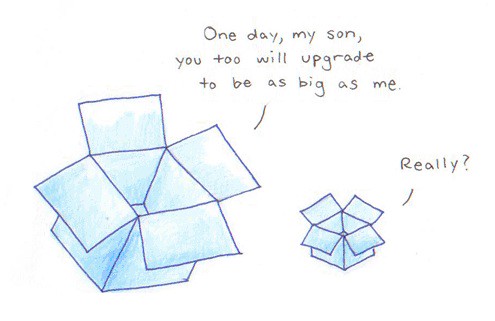
Dropbox Upgrade

Dropbox is also great for general file storage (it comes with 2GB for free or 50GB if you upgrade for $9.99/month) and to share your files with other people.


Here Are A Few Related Posts You Might Enjoy:

Mini Business Card File Cabinet

Sharing Is Caring: HD DVD Hex Code T-Shirt

Drobo, A Multi-Drive Autonomous Data Storage Robot

The Ultimate Pizza Box, Green Box Transforms Into 4 Serving Plates & Storage Container

Jones’ Big Ass Truck Rental & Storage

filed under Computers, Internet

{ 2 comments… read them below or add one }

1 Leandro December 11, 2008 at 2:12 pm

I use Dropbox long time ago. And I does the same with passwords but Keepass for syncing passes with Windows/Mac/Linux.

Also I have discovered LastPass for firefox, pure gold.

Reply

2 Aaron December 12, 2008 at 9:48 am

Hear hear. At first I used dropbox just to keep data files in synch that I was working on. I could go from my desktop to my laptop and the file would be there in the state I left it in. I don’t like keeping all my stuff in the ~/Dropbox folder, so I created soft links to the places I normally keep my data. Just open a terminal and type:

cd ~/Dropbox
ln -s ~/Documents/whatever

This will put a link to *whatever* in your dropbox folder. Then do the same thing on your other computer and now that other folder is the same on both machines.

Then I started doing this with application data. I wouldn’t do this with something like iTunes (because the files are too large if you want to include the actual MP3s in your library), but it works great for lots of little apps that save preferences (like Firefox).

Viva le DropBox!

Reply

Leave a Comment

You can use these HTML tags and attributes: <a href="" title=""> <abbr title=""> <acronym title=""> <b> <blockquote cite=""> <cite> <code> <del datetime=""> <em> <i> <q cite=""> <strike> <strong>

Moderation: All comments are manually approved, so if your comment is approved it may take a while for your comment to appear on this blog post.

Irrelevant, obnoxious, trolling, abusive and spam comments will not be approved. Let's keep things civil and on topic. Basically what we are saying, if your comment does not add to the conversation, it will not be approved.

Real Name & Website: For the most part do not post anonymous comments. Please list your real name and provide a link to your website, blog, Twitter account, etc. You know who we are, so we ask the same of you.

Corrections: If you want to point out a typo or correction, please email us instead. Typo or correction comments will not be approved since they are pretty much useless once they are corrected and then only tend to confuse things.

Gravatars: If you would like a Gravatar to show up with your comment? Just sign-up for an account and any comment with your email address will display your Gravatar.

Previous post: CELLspace Launches Project 2048 Artist in Residency Program

Next post: Flickr Improves Contact Management